26 Mar 2026
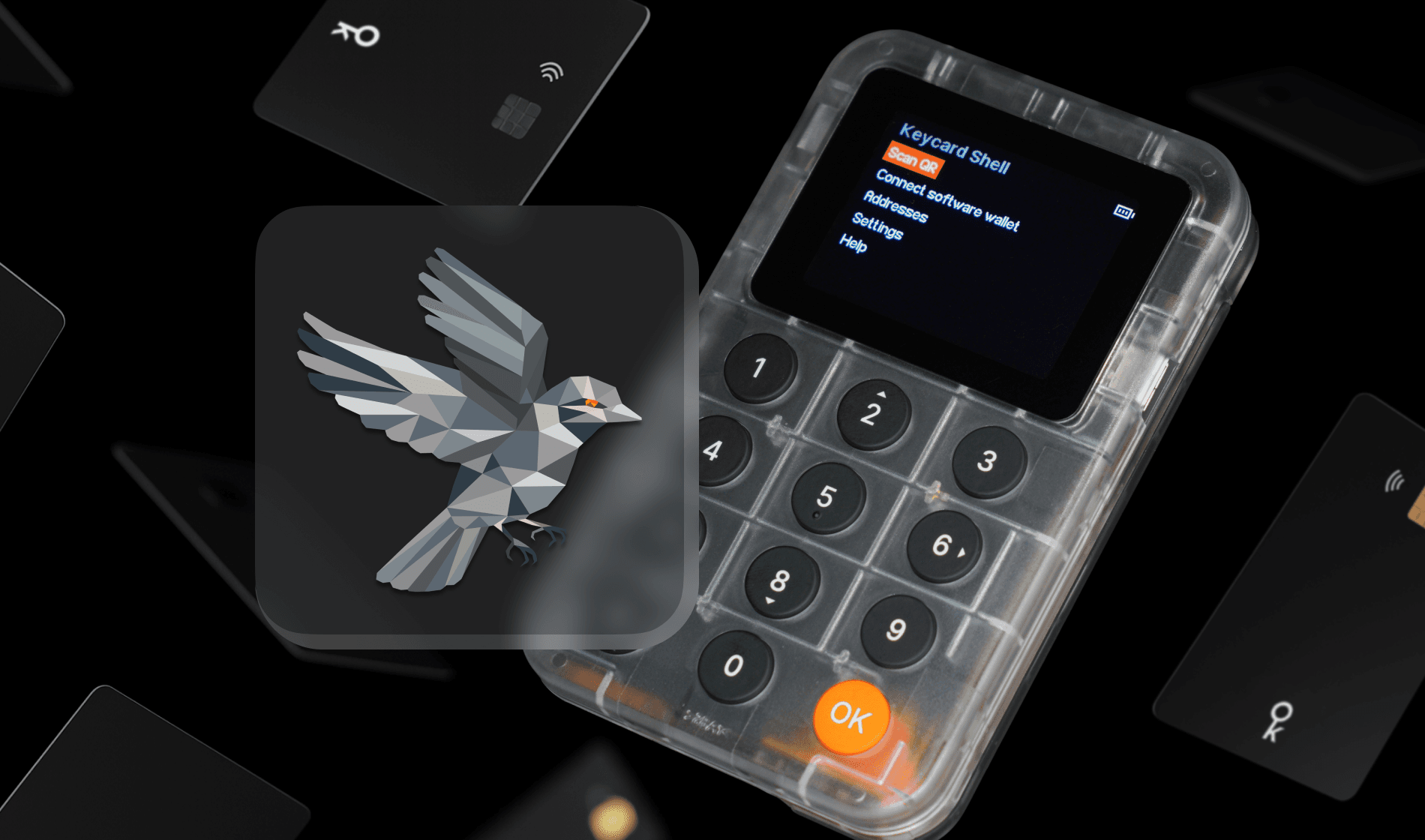
You can use your Keycard Shell with Sparrow Wallet to manage crypto assets, interact with dApps, and access all available Sparrow Wallet features.
Currently, Keycard Shell doesn't appear on Sparrow Wallet's list of supported hardware wallets, but you can still connect it to Sparrow using the Keystone option.
- You can use Sparrow to import your regular (single-signature) Bitcoin wallet or create a multi-signature wallet that include your Keycard as one of the cosigners.
- If you have multiple Keycards, you can use each of them as separate cosigners in a multisig wallet.
- After connecting to Sparrow, your wallet private keys remain on your Keycard, and Sparrow has no access to them.
- Sparrow is an interface to manage your crypto assets. For any transactions generated during use, sign with Keycard Shell.
- 1Insert your Keycard into Keycard Shell to power it on.
- 2Enter your Keycard PIN and press OK.
- 3Select Connect software wallet.
- 4Press OK to confirm the text on the screen.
- 5Select Bitcoin.
- 1In Sparrow Wallet on the top bar menu, select File > Import Wallet.
- 2Find Keystone and select Scan on the right.
- 3Scan the QR code displayed on the Keycard Shell screen using your computer camera.
- 4In Sparrow Wallet, select script type (Legacy, Nested SegWit, or Native SegWit) and then select Import.
- 5Enter a name for your wallet and select Create Wallet.
- 6Optionally, set a password for your wallet and select Set Password. To continue without a password, select No password.
- 1Insert your Keycard into Keycard Shell to power it on.
- 2Enter your Keycard PIN and press OK.
- 3Select Connect software wallet.
- 4Press OK to confirm the text on the screen.
- 5Select Bitcoin MultiSig.
- 1In Sparrow Wallet on the top bar menu, select File > New Wallet.
- 2Enter a name for your wallet and select Create Wallet.
- 3For Policy Type, select Multi Signature. For Script Type, select Legacy, Nested SegWit, or Native SegWit.
- 4For Cosigners, slide to set the number of required signatures and total cosigners.
- 5Under Keystore, for each cosigner wallet, select Airgapped Hardware Wallet. Then find Keystone multisig and then select Scan on the right.
- 6Scan the QR code displayed on the Keycard Shell screen using your computer camera.
- 7Optionally, set a password for your wallet and select Set Password. To continue without a password, select No password.
Last edited
26 Mar 2026