26 Mar 2026
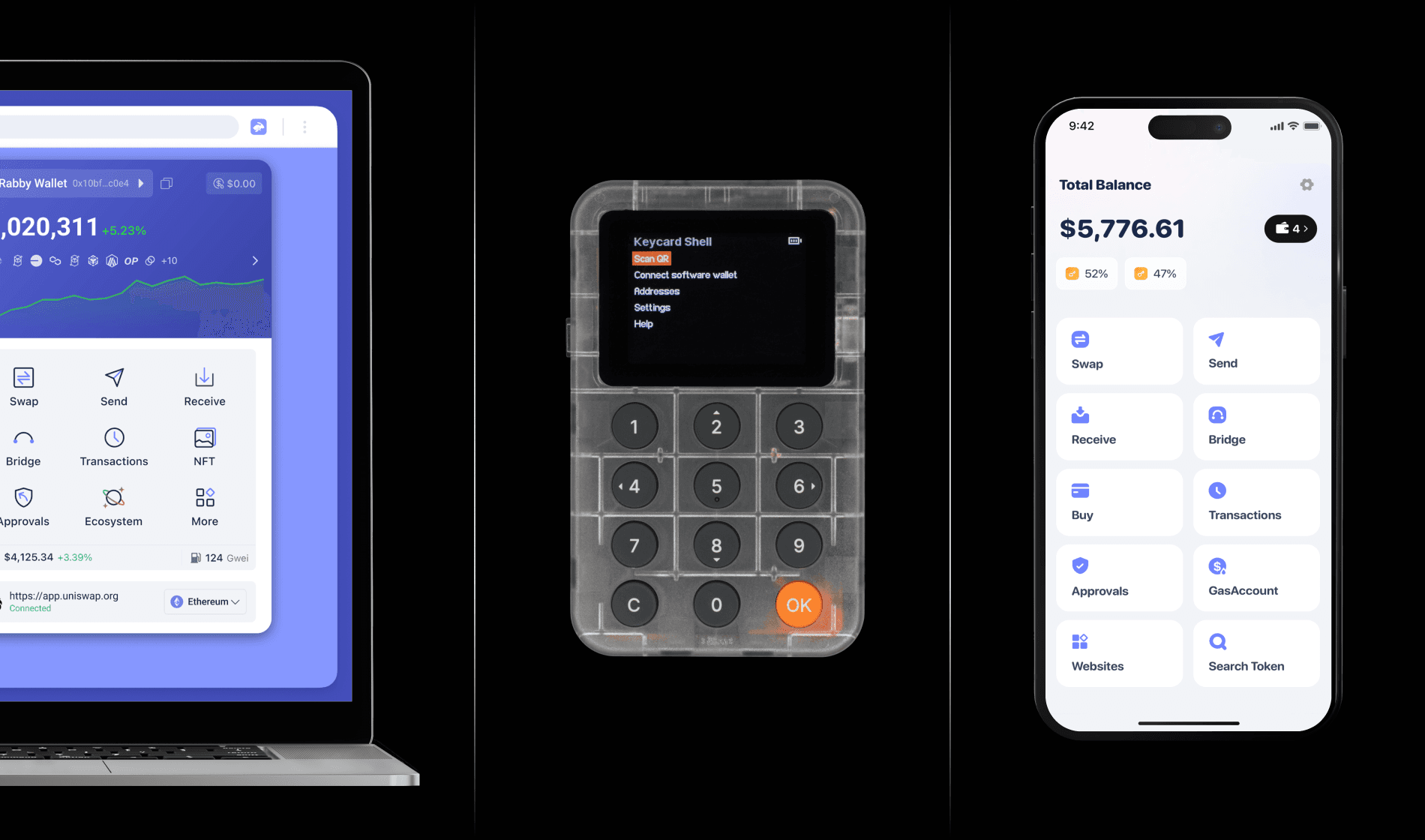
Keycard and Keycard Shell must work together with a software wallet that supports QR signing. After setting up your Keycard, you need to connect your Keycard Shell to a supported software wallet.
Currently, Keycard Shell doesn't always appear on software wallet's list of supported hardware wallets, but you can still connect it to a supported software wallet by selecting the QR-based (for example, MetaMask) or Keystone (for example, Rabby and Nunchuk) option.
- The software wallet is the interface to manage your crypto assets and to create your transactions.
- The private keys remain on your Keycard, and neither Shell nor the software wallet ever has access to them.
- You can connect your Keycard Shell to one or multiple software wallets.
- You can disconnect Keycard Shell from a software wallet at any time, and this operation is done solely on the software wallet side.
- Software wallets exist on mobile, desktop or as browser extensions.
In Step 3 below, you will have to choose on Shell the type of wallet you want to connect to. You can choose:
- Ethereum: For Ethereum and EVM software wallets such as MetaMask, Rabby or imToken.
- Bitcoin: For Bitcoin software wallets such as Sparrow, Specter or Nunchuk.
- Bitcoin multisig: When you plan to use Bitcoin multisig with the software wallet as a coordinator.
- Bitget: For Bitget software wallet (which supports altogether Eth, EVMs and Bitcoin).
- Others: For more advanced users who wish to have more flexibility regarding the derivation paths to use with their software wallet (Ledger Live or Ledger Legacy alternative paths, Bitcoin alternative accounts, Testnet), please check the following article: Other derivation paths.
In this process, you use your software wallet to scan a QR code displayed on your Keycard Shell.
Follow the detailed steps to connect Keycard Shell to MetaMask or Sparrow Wallet if you use these software wallets.
Some software wallets like Metamask, require you to create a new wallet account or import your existing wallet before connecting Keycard Shell even if you don't plan to use it. This wallet is separate from your Keycard and Keycard Shell.
- 1Open the software wallet you want to connect to on your computer or smartphone.
- 2If required, create a new wallet account or import an existing one using your recovery phrase.
- 3In your software wallet, choose the option for connecting a hardware wallet.
- 4Select QR-based or Keystone depending on which one is available.
- 5Continue with the instructions in your software wallet to open your computer or smartphone camera.
- 1Insert your Keycard into Keycard Shell to power it on.
- 2Enter your Keycard PIN.
- 3Select Connect software wallet.
- 4Press OK.
- 5Select Ethereum, Bitcoin, Bitcoin Multisig, Bitget or Others.
- 1Scan the QR code displayed on the Keycard Shell screen using your computer or smartphone camera.
- 2In your software wallet, select the accounts you want to use in the software wallet.
- 3In your software wallet, confirm to connect the selected accounts.
Steps may vary depending on your software wallet. Refer to your wallet's documentation for exact instructions on connecting a hardware wallet.
Last edited
26 Mar 2026