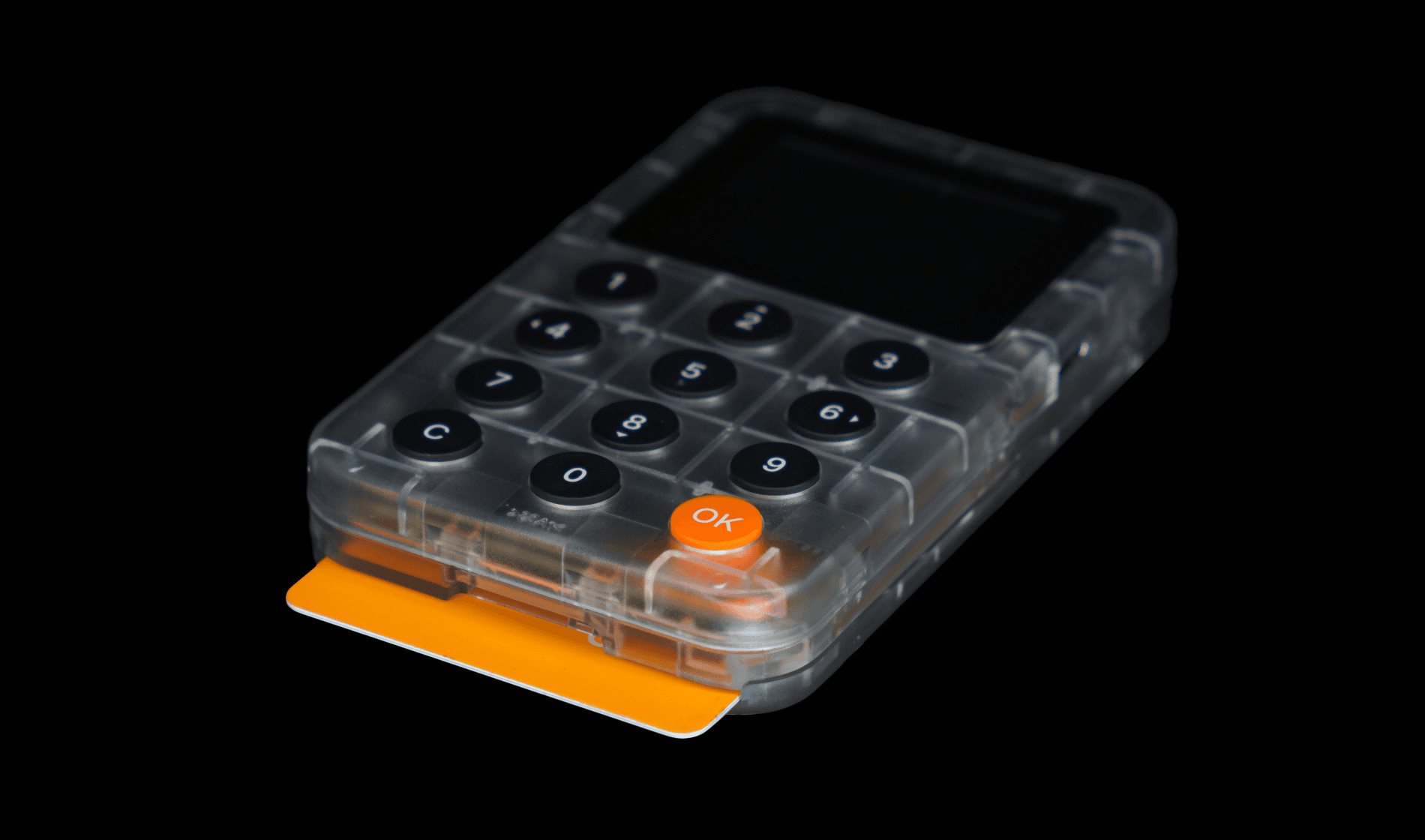
You have two Keycard setup options: using the Status app ↗, or using Keycard Shell. With Keycard Shell, you can connect your Keycard with other popular software wallets.
To use your Keycard with Keycard Shell, you need to set a Keycard PIN and optionally a duress PIN, then add a key pair to your Keycard.
Before you start, get to know your Keycard Shell's controls.
If you do not set a duress PIN during setup, you cannot add one later. This limitation is unavoidable to make the duress PIN undetectable to attackers.
Keycard Shell prevents you from setting your Keycard PIN and duress PIN to be the same.
- 1Insert the Keycard into your Keycard Shell with the chip facing up and push it in all the way. Your Keycard Shell powers on automatically.
- 2Set a Keycard PIN and press OK.
- 3Enter the Keycard PIN again and press OK to confirm.
- 4Optionally, press and hold OK to set a duress PIN (or press C to skip this step).
- 5Set a duress PIN and press OK.
- 6Enter the duress PIN again and press OK to confirm.
- 7Press OK.
A key pair consists of a public key (which generates your shareable wallet address) and a private key (which you use to sign transactions and prove ownership). One Keycard can store one master key pair, from which all derived key pairs are created. These derived key pairs correspond to different wallet addresses of your Keycard.
There are three methods to add a master key pair to your Keycard using Keycard Shell:
Keycard and Keycard Shell support the BIP39 protocol (12- or 24-word recovery phrase) and SLIP39 backup standard. SLIP39 is an advanced backup method that splits your wallet backup into multiple parts.
When you set up a key pair, you can set a passphrase in addition to your recovery phrase. A passphrase is an optional extra word or phrase you add to your recovery phrase for extra security. If you set one, you must remember it to recover your wallet.
- 1On your Keycard Shell, select Generate new key pair.
- 2Choose your recovery phrase type: 12 or 24 words, or a SLIP39 backup. You can also select whether to use a passphrase. Then press OK to confirm the text on the screen.
- 3Proceed depending on your situation.
Recovery phrase Steps 12- or 24-word recovery phrase - 1Write down the recovery phrase.
- 2Press OK.
SLIP39 recovery phrases - 1Press ◀ / ▶ Left / Right to set the total number of parts and the threshold number of parts required to recover your wallet. Then press OK.
- 2Write down the recovery phrase parts.
- 3Press OK.
- 4Press OK to confirm the text on the screen. Then confirm your recovery phrase by selecting the words as required.
- 5If you choose to set a passphrase, press ▲ / ▼ Up / Down and ◀ / ▶ Left / Right to select letters and set a passphrase. Press and hold OK to confirm.
- 6Press OK.
- 1On your Keycard Shell, select Import recovery phrase.
- 2Select the type of your recovery phrase (12 or 24 words, or a SLIP39 backup) and whether it includes a passphrase.
- 3Press ▲ / ▼ Up / Down and ◀ / ▶ Left / Right to select letters and enter each word of your recovery phrase. Press and hold OK to confirm each word.
- 4If there is a passphrase, enter it. Press and hold OK to confirm.
- 5Press OK.
- 1On your software wallet or another hardware wallet, prepare your recovery phrase QR code for scanning.
- 2On your Keycard Shell, select Scan QR.
- 3If your recovery phrase has a passphrase, select Add passphrase. Otherwise, select No passphrase.
- 4Scan the QR code with your Keycard Shell's camera.
- 5Confirm your recovery phrase by pressing OK.
- 6If there is a passphrase, press ▲ / ▼ Up / Down and ◀ / ▶ Left / Right to select letters and enter the passphrase. Press and hold OK to confirm.
- 7Press OK.